AI Outreach
Create an outreach draft and define its audience
Step-by-step guide
The same walkthrough in writing, with a screenshot for every step.
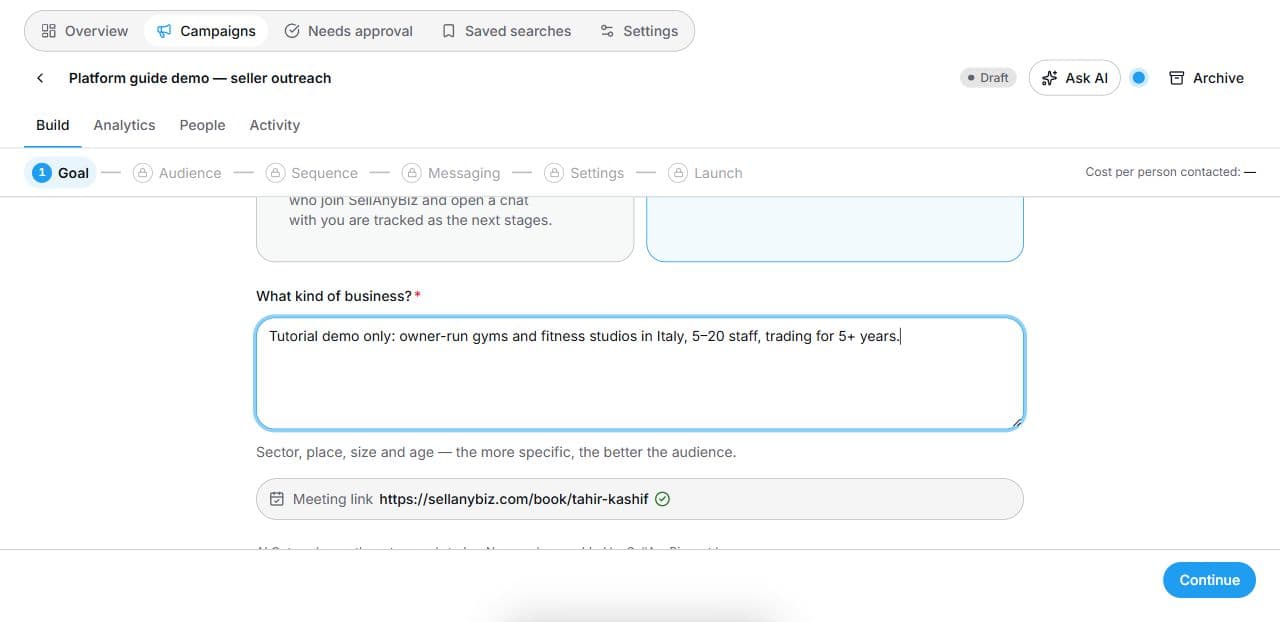
1. Set your campaign goal
Open AI Outreach → New campaign and name the draft. Choose Find buyers for my listing or Find owners who want to sell. For the seller goal, describe sector, place, size and age. Confirm the meeting link is ready, then choose Continue. This demonstration uses a fictional seller brief.
2. Prepare an audience
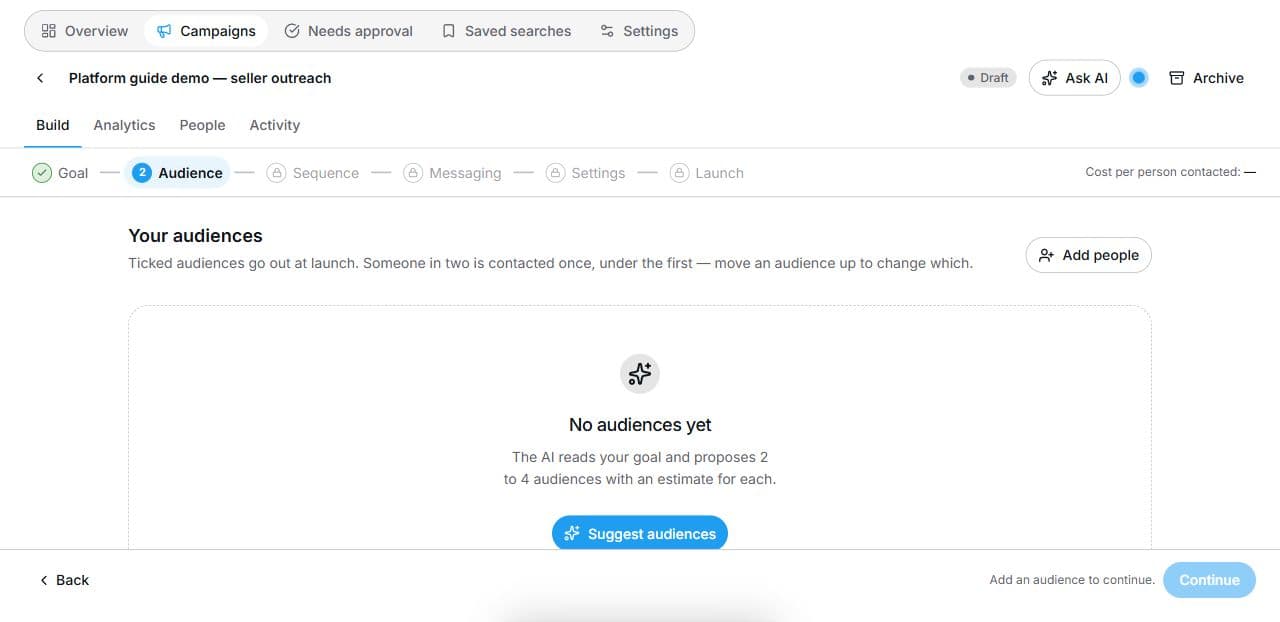
In Audience, use Suggest audiences for AI proposals or Add people for custom filters. Selected audiences are included at launch; overlaps are deduplicated in audience order. The tutorial opens the custom-filter form without importing a contact list or contacting anyone.
3. Review filters and exclusions
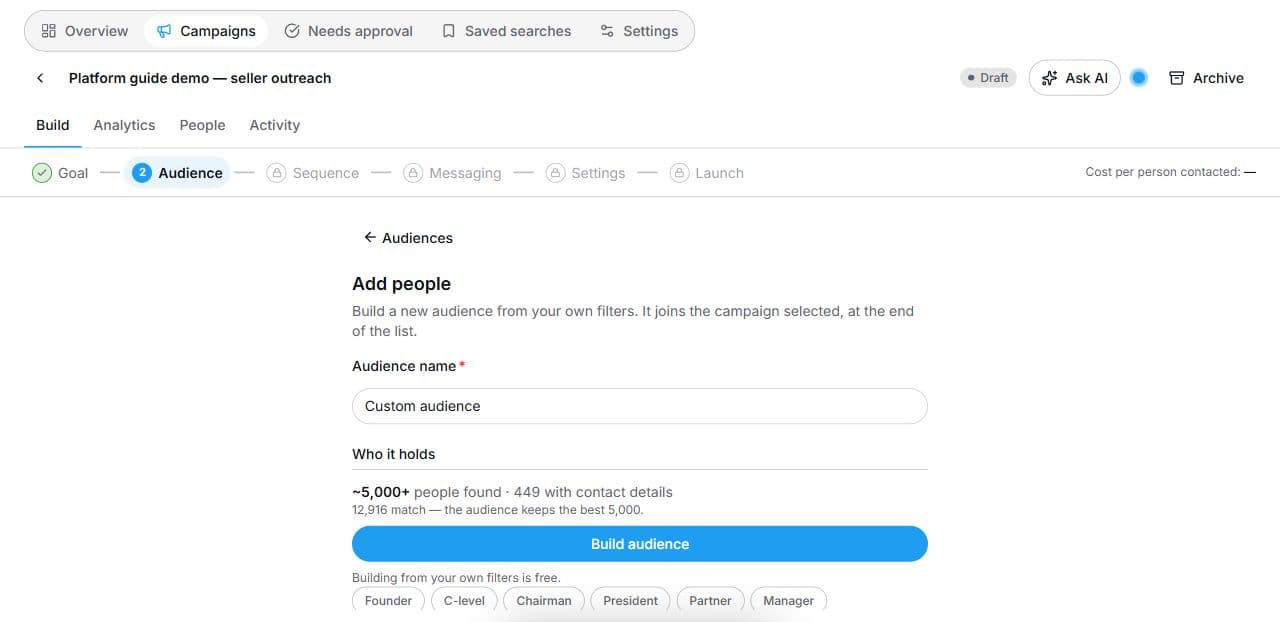
Give the audience a name and choose People or Companies. In People, review roles, job titles, company size, industries and locations. Check the buying-signal option and exclusions, including the do-not-contact list. Build audience applies the filters. The demonstration stops before building. For a real campaign, complete Sequence, Messaging, Settings and Launch, reviewing costs and approvals before sending.
Common questions
Short answers to what people ask most about this part of the product.
Does creating a draft send messages?
No. This demonstration creates a named draft and opens audience filters. It does not build an audience or launch a campaign.
Which goals are currently offered?
The observed campaign form offers Find buyers for my listing and Find owners who want to sell. Availability may depend on workspace access.
What should I review before launch?
Review the chosen people, exclusions, sequence, message wording, connected channels, approvals and displayed costs. Follow your organisation's outreach rules.
Video transcript
Open AI Outreach and select New campaign. Give the draft a clear name. Choose Find buyers for my listing, or Find owners who want to sell. This example uses the seller goal. Describe the sector, location, company size and trading history you want. Check that the meeting link is ready, then select Continue. The campaign is still a draft. The Audience step shows the audiences selected for this campaign. Suggest audiences asks the AI to propose audiences from the goal. Add people lets you build an audience from your own filters. The page explains that selected audiences are used at launch, and someone included twice is contacted once. We open the filter form without building or launching an audience. Name the audience, choose People or Companies, then narrow the criteria. The People form includes roles, job titles, company size, industries and locations. Review the buying signal option and the contact exclusions. Build audience uses these filters; this example stops before that action. After preparing a real audience, continue through Sequence, Messaging, Settings and Launch. Review channels, wording, approvals and costs before launching. Creating this draft has not sent any messages.
Watch the video, or follow the written steps below. Both cover the same walkthrough.