Deal Hub
Find and filter deals in Deal Hub
Step-by-step guide
The same walkthrough in writing, with a screenshot for every step.
1. Search your deals
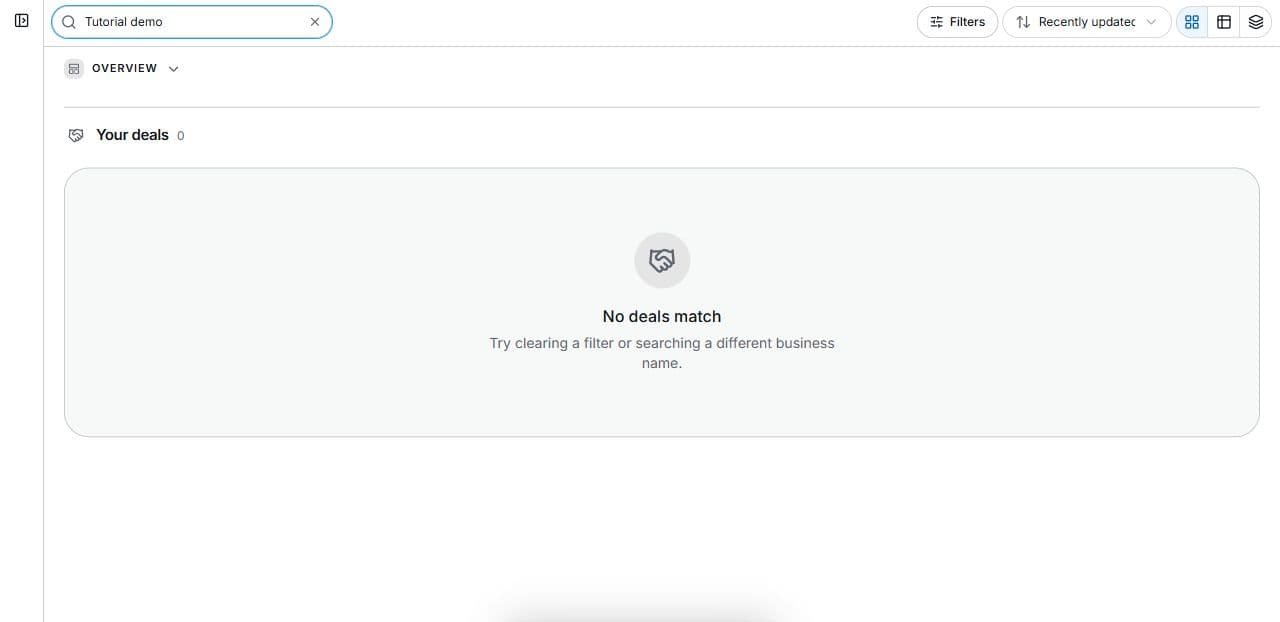
Open Platform → Deal Room. Select Search your deals and enter a business name. Use Clear search to remove the text. Overview expands or collapses the portfolio summary; filters act on the list. The demo search intentionally returns no client records.
2. Narrow by status and stage
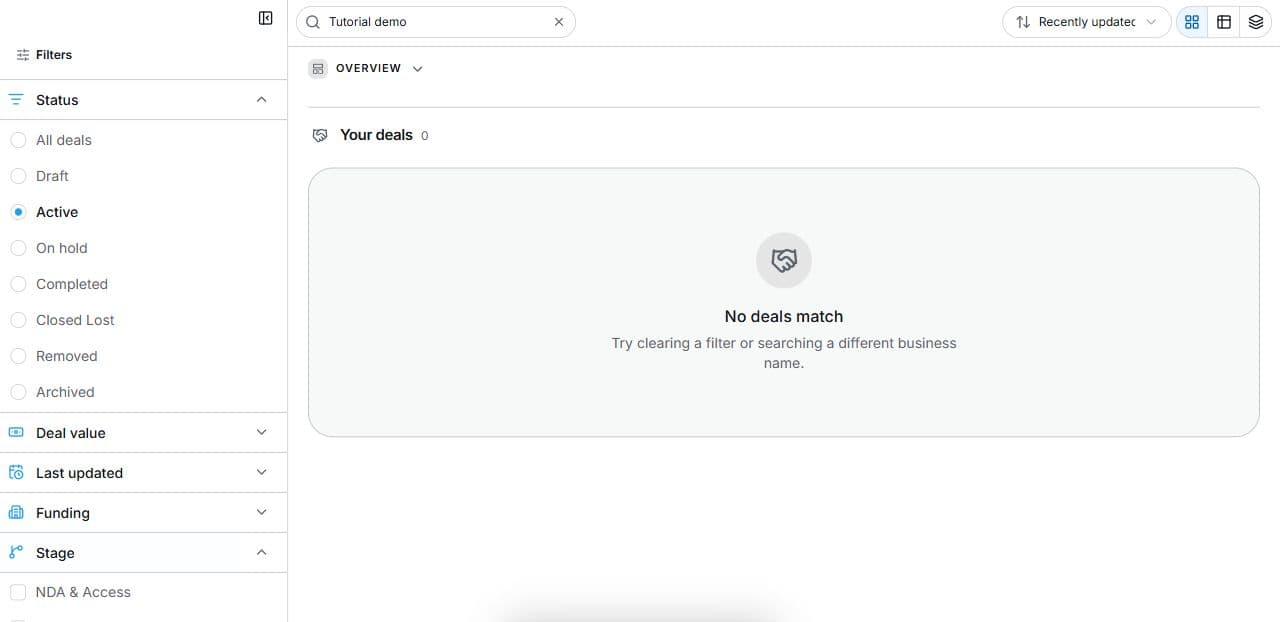
Open Filters, then choose a Status. Expand Stage and choose the stages you want to find. Additional sections include Deal value, Last updated, Funding, My role and Industry. Filtering changes the displayed results; it does not change deal status or stage.
3. Choose your working view
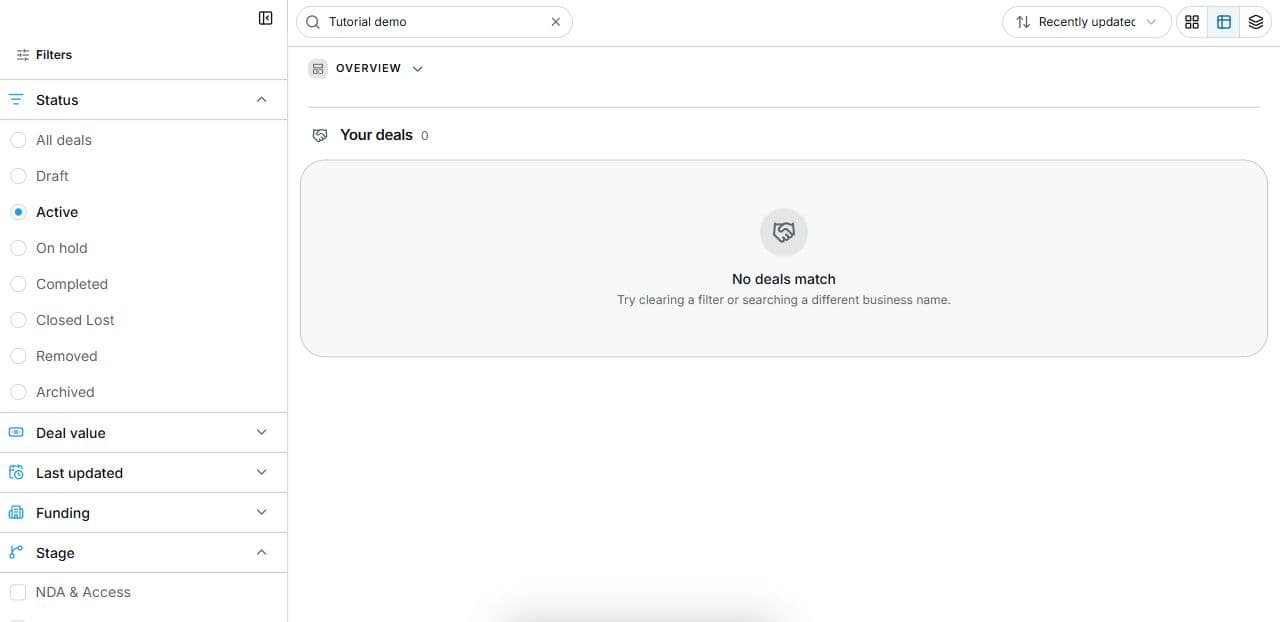
Choose Card view, Table view or Group by listing, then adjust Sort deals. If the list is empty, review search text and filters. With a matching record, use Open deal to enter it when you have access. This introductory guide covers search, filters and views, rather than completing a transaction.
Common questions
Short answers to what people ask most about this part of the product.
Why are there no matching deals?
Search text and selected filters work together. Remove or adjust them, and verify the active workspace and your deal access.
Are status and stage the same?
No. Status describes the deal's overall state; stage identifies the transaction step. Filtering either does not modify the deal.
Does this guide complete a transaction?
No. It demonstrates search, filters and view controls. Individual deal actions and approvals require opening a deal with appropriate access.
Video transcript
Open Deal Room from Platform. This is the Deal Hub area in the Help Center. Select Search your deals and enter a business name. This tutorial uses a fictional search with no results, so no client information is shown. Clear search removes the text filter. The overview can be expanded or collapsed separately from the deal list. Open Filters. Status describes whether a deal is active, on hold, completed or in another state. Stage describes where the transaction is in the workflow. Expand Stage to see options such as NDA and Access, Pre LOI Review, Offer, Escrow and Funding, Due Diligence and Close. These filters help you locate work; selecting a filter does not move a deal to another stage. Use the view controls for Card view, Table view or Group by listing. Sort deals lets you change the ordering. If there are no matches, check both the search text and the selected filters. When you find a deal, use its Open deal action to continue, subject to your access. This guide covers finding and organising deals; approvals and transaction steps happen inside the individual deal.
Watch the video, or follow the written steps below. Both cover the same walkthrough.