Engagement
Use the calendar and prepare a meeting
Step-by-step guide
The same walkthrough in writing, with a screenshot for every step.
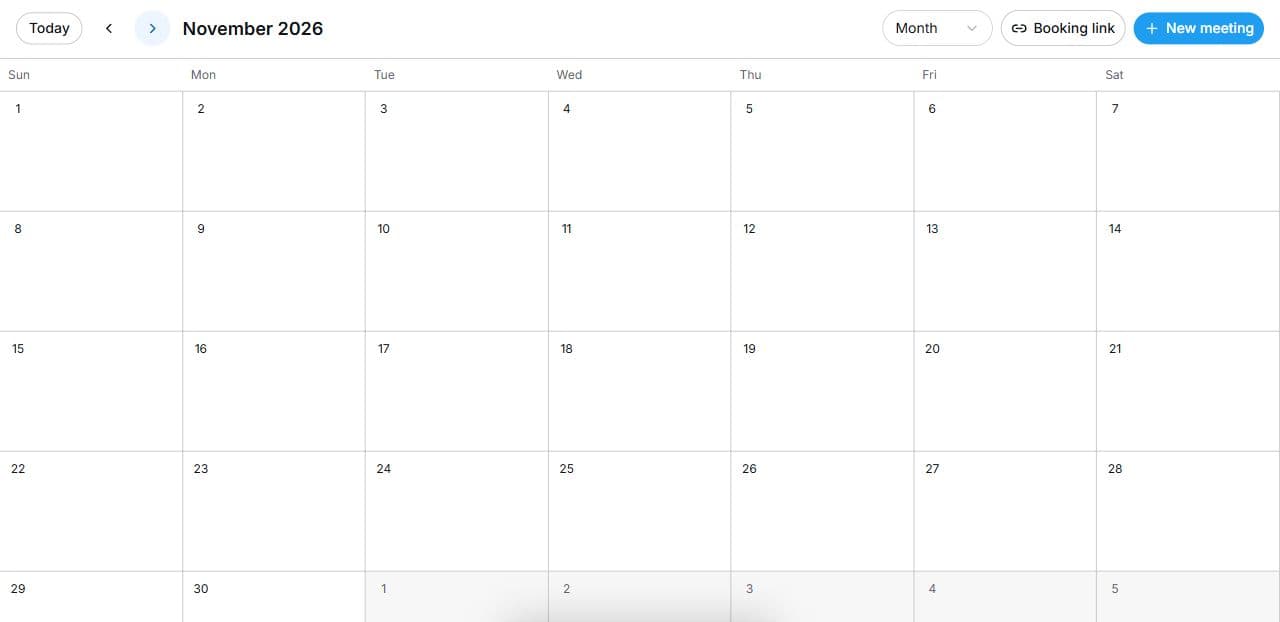
1. Navigate your calendar
Open Engagements → Calendar. Use Today, Previous period and Next period to navigate. Choose a Calendar view. Booking link provides access to your booking-page link.
2. Prepare an online meeting
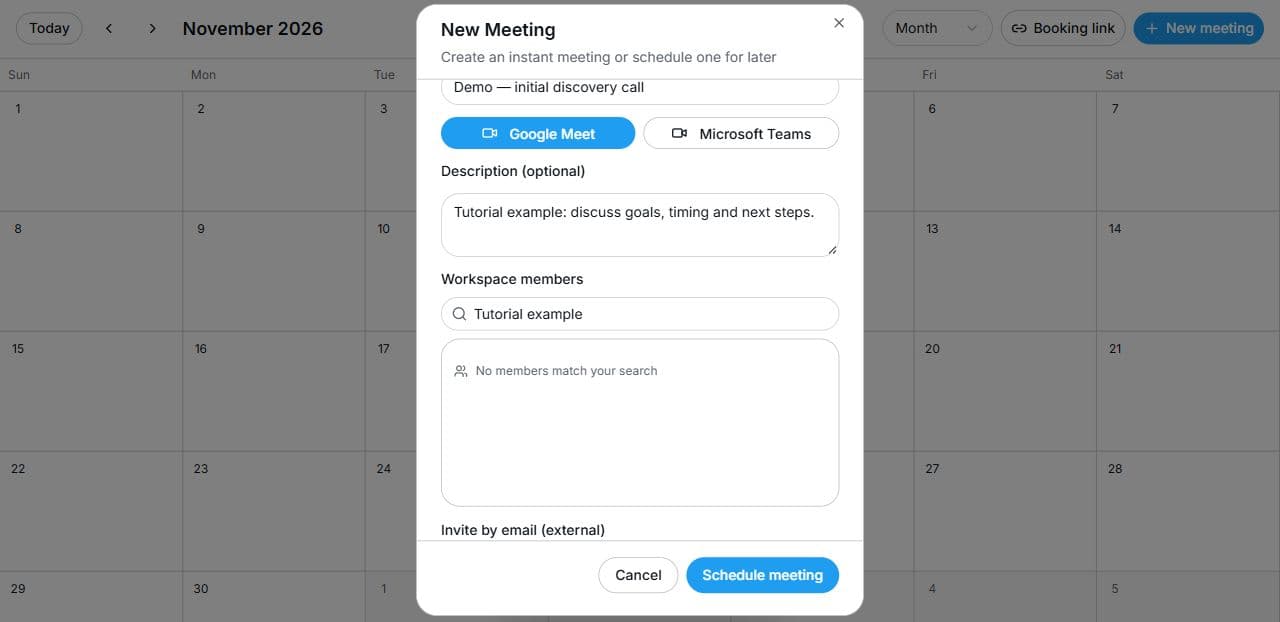
Select New meeting, choose Online, and enter a title and description. Choose Google Meet or Microsoft Teams when available. Select members or enter an external email. Complete date, time and duration. Review all fields before Schedule meeting. No invitation was sent in this demonstration.
3. Prepare an in-person meeting
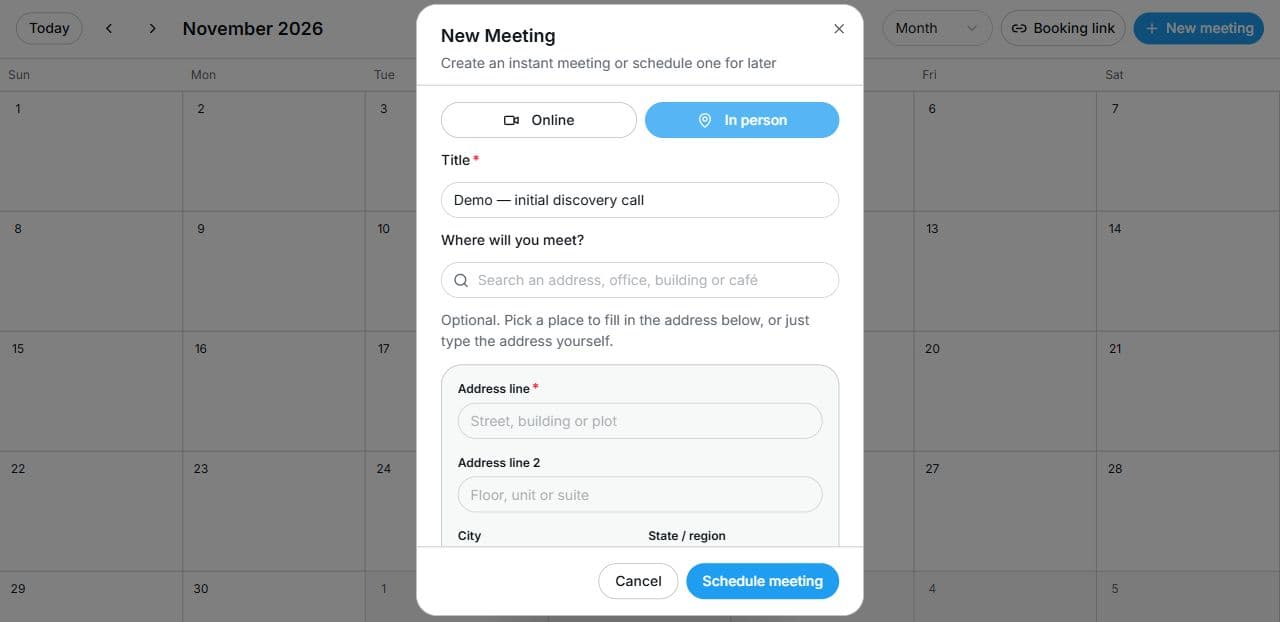
Choose In person to display address fields. Complete the required address information and optionally a location label. Choose participants, date, time and duration. Use Cancel to leave an unfinished example. Review scheduled activity in Calendar or Meetings; Conversations is a separate Engagements area.
Common questions
Short answers to what people ask most about this part of the product.
Does New meeting send an invitation immediately?
Opening and filling the form does not schedule the meeting. Review the details before using Schedule meeting; this tutorial cancels instead.
Can I invite someone outside my workspace?
The meeting form provides an external-email invitation field. Verify the recipient before scheduling.
What changes for an in-person meeting?
The form adds address fields and an optional location label. Participants, date, time and duration still need to be set.
Video transcript
Welcome to the Sell Any Biz Engagements guide. Open Engagements, then Calendar. Use Today and the arrows to move between dates, and choose your calendar view. The Booking link button gives you a way to share your booking page. This example uses an empty month. Select New meeting. Add a clear title and a short agenda. For an online meeting, choose Google Meet or Microsoft Teams. Select workspace members, or add an external invitee by email. Check the date, time and duration before selecting Schedule meeting. This demonstration stops before sending an invitation. Choose In person when you will meet at a physical location. Complete the address and, if useful, add a location label. You still choose the participants, date, time and duration. Cancel closes an unfinished form. Return to Calendar to review your schedule, and use Meetings or Conversations from Engagements for the related activity. Start with one clear meeting purpose, and check the details before you send.
Watch the video, or follow the written steps below. Both cover the same walkthrough.