Onboarding
Get started and find your workspace tools
Step-by-step guide
The same walkthrough in writing, with a screenshot for every step.
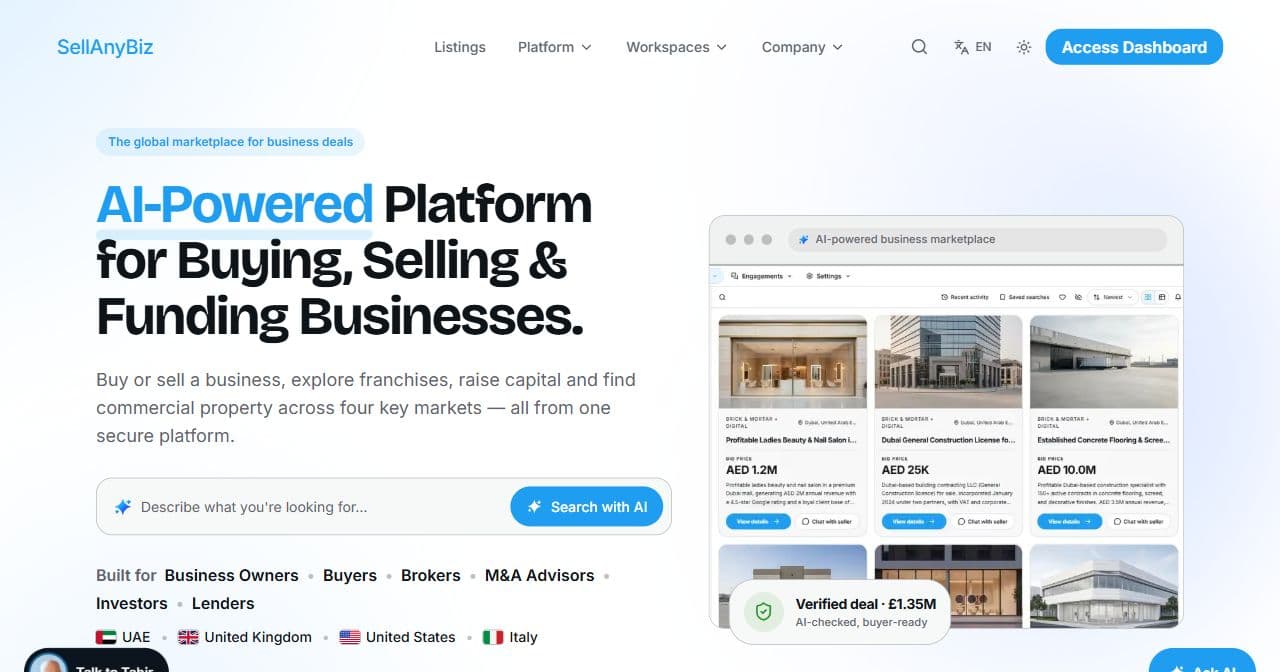
1. Start from SellAnyBiz
Open SellAnyBiz. Browse Listings is available publicly. Signed-in users can choose Access Dashboard. New users can start from Get Started on a workspace page.
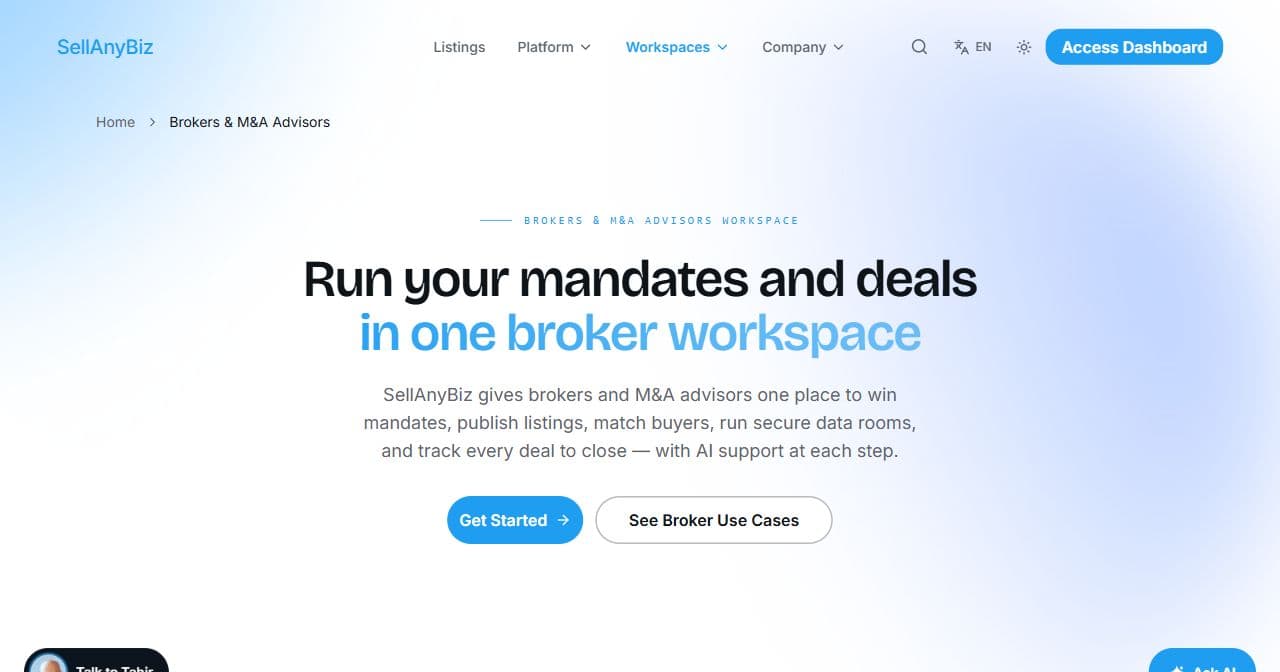
2. Choose tools for your role
Read the relevant page under Workspaces. The broker and advisor workspace is one example. In the dashboard, check the workspace name in the header. Availability depends on workspace type, plan and permissions.
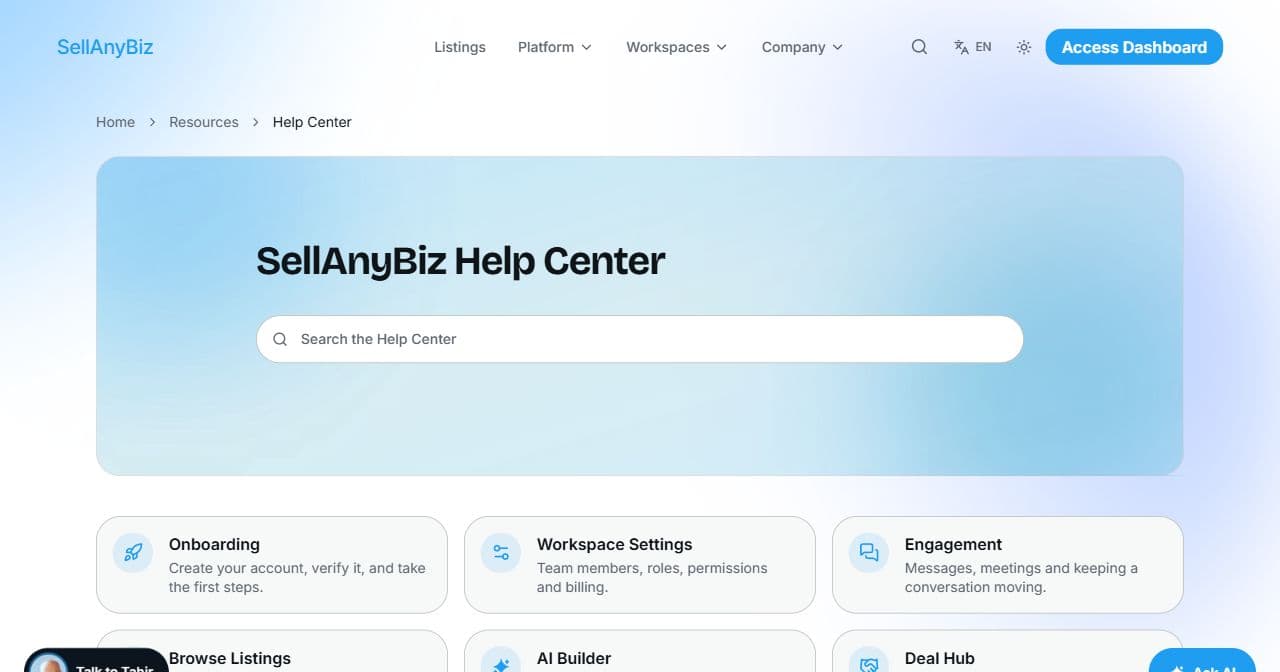
3. Learn one area at a time
Open Help Center, search for a task or select a category. Watch a guide, then follow its written steps. Take a tour in the dashboard offers contextual tours where available. Start with Workspace Settings before undertaking your first workflow.
Common questions
Short answers to what people ask most about this part of the product.
Can I browse without a workspace?
Public listing pages are accessible from Listings. Actions inside the dashboard require an account and the appropriate workspace access.
Why do I see different tools?
Tools vary by workspace type, plan and permissions. Check the active workspace in the dashboard header.
Are the Italian videos recorded on an Italian dashboard?
These guides have Italian narration and written steps. Dashboard controls shown in the captures are in English, so the instructions retain their exact English labels.
Video transcript
Welcome to Sell Any Biz. Start from the home page. You can browse public listings before opening your workspace. When you are signed in, select Access Dashboard to enter the platform. If you are new, use the Get Started entry on the workspace page and follow the account setup prompts. Open Workspaces to understand which tools fit your role. This example shows Brokers and M and A Advisors. The page explains listing preparation, buyer matching, data rooms and deal coordination. Inside your account, check the workspace shown in the header before you work. Your workspace type and permissions determine the tools available to you. Use the Help Center when you need a walkthrough. Choose a category, then a guide. Existing guides combine a video, written steps and questions. You can also search for a task. The dashboard has contextual Take a tour controls where available. Begin with workspace settings, then move to the feature you need for your next task.
Watch the video, or follow the written steps below. Both cover the same walkthrough.