Use Case 44
Market commercial properties
Available steps and preparation
This video explains the controls available today and how to prepare. Some actions depend on permissions, approval or tools that are still coming soon; the guide identifies these steps.
Browse use cases for Commercial propertyStep-by-step guide
The same walkthrough in writing, with a screenshot for every step.
Preparation guide: the related platform tools are shown; this does not demonstrate a completed dedicated workflow. Check the limitations below.
1. Choose the available listing route
Preparation only. Open the AI listing agent business route. Only Business editing is available; dedicated franchise/property/capital editors are disabled.
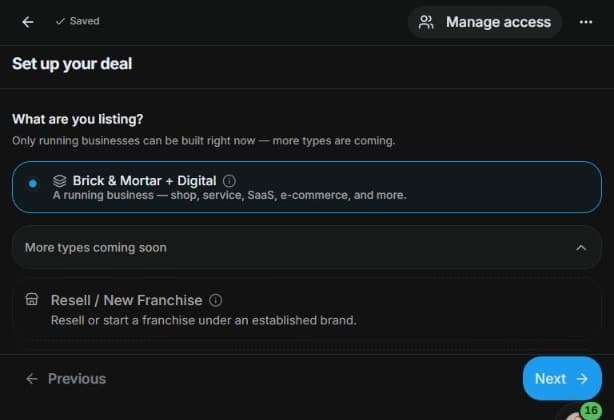
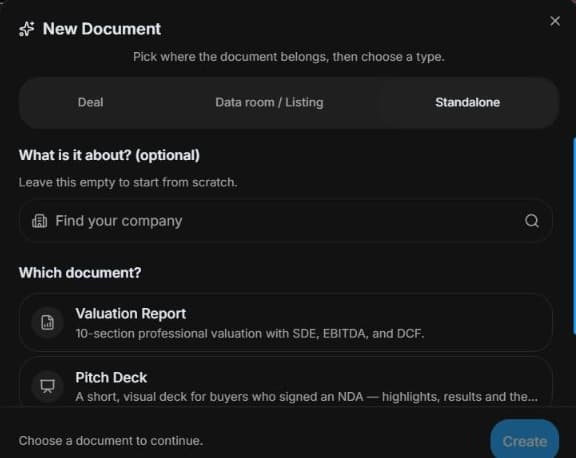
2. Inspect general document preparation
Inspect Document Builder → Create → Standalone document. Use general templates only where appropriate. This does not enable the disabled dedicated editor or publish an opportunity.
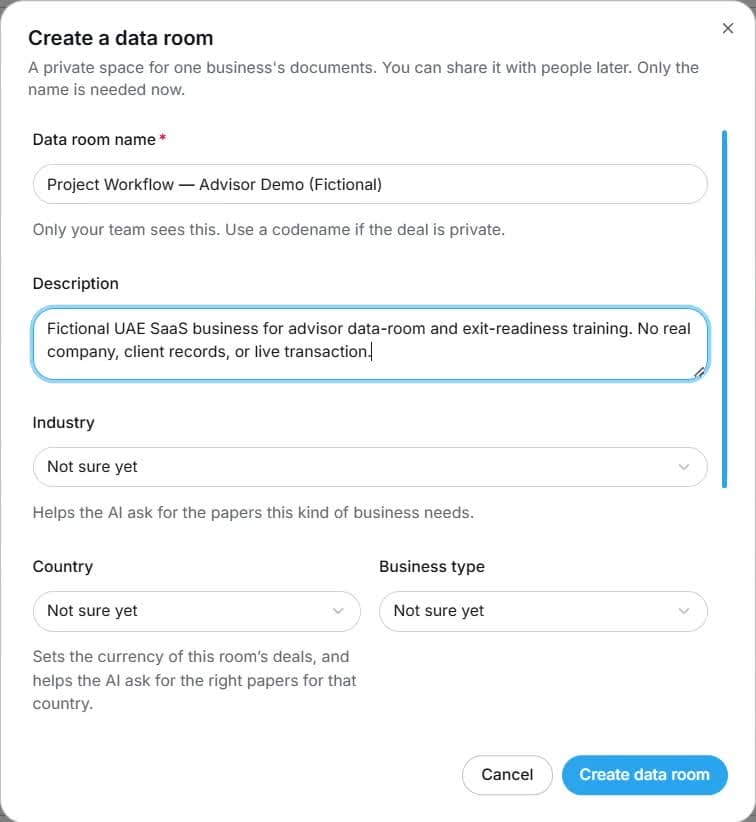
3. Prepare controlled source evidence
Inspect Create data room → Standalone room if permitted. Prepare known facts and controlled evidence. It does not create a specialised application or property deal.
4. Review the outcome and next step
Review title, lease, rent and commercial assumptions with the responsible professionals. Organise evidence through permitted general tools, then use your established authorised marketing process or wait for the editor. The outcome is a reviewed brief, not a published property listing, ownership certification or occupancy promise. Do not bypass an unavailable type by mislabelling the project.
Common questions
Short answers to what people ask most about this part of the product.
Can Business publish my property instead?
Do not bypass the disabled Property editor. This guide covers general document preparation, not dedicated property publication.
What should the preparation brief separate?
Separate location and commercial assumptions from verified title, lease and rent evidence. General templates organise preparation but do not certify ownership or enable Property publishing.
Why are the shown controls in English?
These real platform captures use English labels. Italian narration and instructions retain them so you can identify the exact shown controls.
Video transcript
You want an accurate property opportunity brief with location, lease and ownership details. This is preparation only: Property is disabled in the listing selector. Do not publish through Business as a workaround. Assemble permitted facts and evidence while the dedicated property route is unavailable, keeping a draft description distinct from verified title or valuation. Open Document Builder and inspect Standalone document choices. Valuation, pitch and confidential information memorandum are general templates, not the disabled dedicated publishing form. Choose a template only if it suits the project, and label source assumptions clearly. A template does not publish an opportunity or certify legal eligibility. Prepare a reviewed brief using authorised facts, including which claims need professional confirmation. If your role allows a preparation room, inspect Create data room and Standalone room. Give the project a clear name and use only known business details. The general room can organise evidence, but it is not a franchise application or property transaction engine. Review file version, classification and visibility before any real upload or invitation. Keep professional checks and specialised approvals in their proper process. Review title, lease, rent and commercial assumptions with the responsible professionals. Organise evidence through permitted general tools, then use your established authorised marketing process or wait for the editor. The outcome is a reviewed brief, not a published property listing, ownership certification or occupancy promise. Do not bypass an unavailable type by mislabelling the project.
Watch the video, or follow the written steps below. Both cover the same walkthrough.
Next guide