Use Case 51
Upload reports and documents
Platform walkthrough
Learn from the actual platform screens and written steps, then perform the authorized actions in your own workspace. Actions explained in the video are not necessarily completed in the example.
Browse use cases for Service providerStep-by-step guide
The same walkthrough in writing, with a screenshot for every step.
This walkthrough uses actual platform screens. Actions requiring an authorized user are explained for you to perform in your workspace.
1. Find the correct room
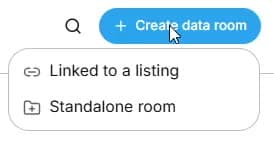
Use the correct existing listing room or inspect Create data room → Standalone room. New business listings prepare linked rooms automatically.
2. Prepare the authorised upload
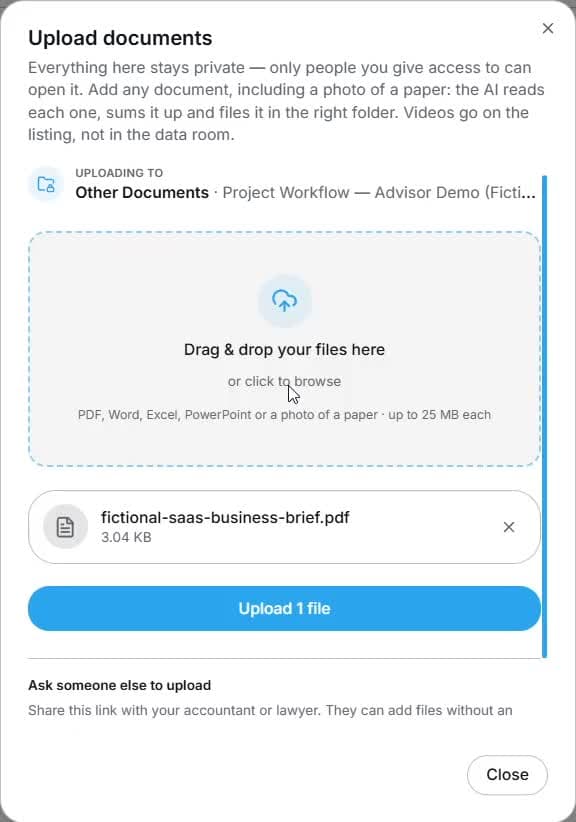
Open the room’s upload/Import control and choose the authorised version. Review processed name and category in Documents. The captured brief is fictional, not a new professional report.
3. Understand organiser access controls
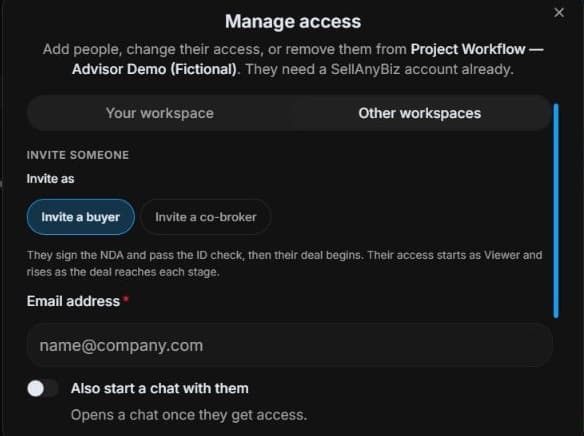
Organiser view: inspect Manage access → Invite buyer / Invite co-broker. Review side, NDA, identity and approval requirements. Reader access does not grant this panel. No invitation or approval is performed.
4. Review the outcome and next step
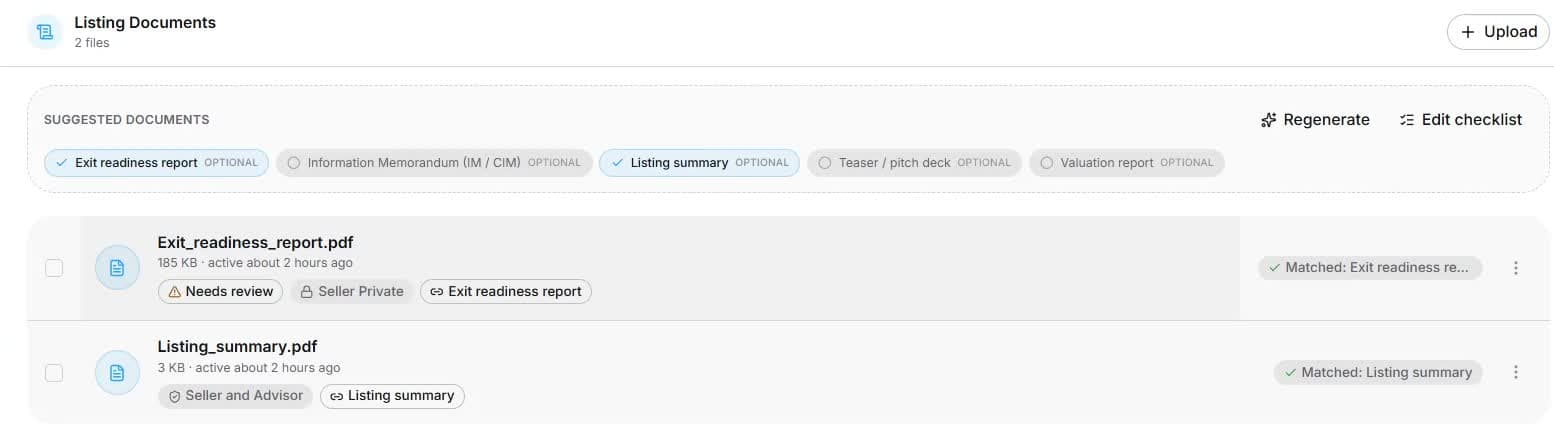
For your upload, verify final name, category, version and visibility after processing. AI filing can need correction and does not approve a conclusion. Confirm the draft with its reviewer before a wider share. The outcome is a traceable report in the right category and audience, with professional review kept distinct from automated document classification.
Common questions
Short answers to what people ask most about this part of the product.
Does AI filing approve my report?
No. It organises a category. Check source evidence, classification, visibility and review status; professional approval is separate.
What should I check after upload processing?
Confirm final name, category, version, review status and visibility against the actual file. Correct AI classification where needed; draft filing does not approve the professional conclusion.
Why are the shown controls in English?
These real platform captures use English labels. Italian narration and instructions retain them so you can identify the exact shown controls.
Video transcript
You prepared a report for an authorised engagement and need the correct version in the room. Start with the appropriate data room and document categories. Your real report should identify date, source basis, scope and review status, so recipients can distinguish a draft from an approved professional conclusion. Use the correct room’s upload or Import control for a file you are entitled to share. Select the intended report and check its version before processing. AI can rename or classify a file, so compare the result with the actual content. Check the final name and category in Documents. File handling is not professional approval; the responsible reviewer still needs the source evidence and stated scope. The organiser’s Manage access panel separates workspace access from external buyer and co-broker invitations. Check the intended person and side before changes. An invitation is not unrestricted access: NDA, identity and approval requirements can still apply. Viewing a document does not give a reader these organiser controls. For your upload, verify final name, category, version and visibility after processing. AI filing can need correction and does not approve a conclusion. Confirm the draft with its reviewer before a wider share. The outcome is a traceable report in the right category and audience, with professional review kept distinct from automated document classification.
Watch the video, or follow the written steps below. Both cover the same walkthrough.