Use Case 12
Open data rooms
Platform walkthrough
Learn from the actual platform screens and written steps, then perform the authorized actions in your own workspace. Actions explained in the video are not necessarily completed in the example.
Browse use cases for BuyerStep-by-step guide
The same walkthrough in writing, with a screenshot for every step.
This walkthrough uses actual platform screens. Actions requiring an authorized user are explained for you to perform in your workspace.
1. Find the correct room
Start at the permitted listing’s Data Room access status or accessible deal. Reader permissions differ from organiser controls shown in the fictional room.
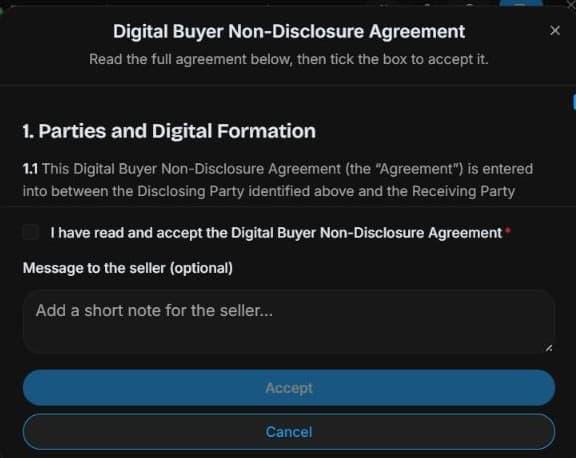
2. Check document version and visibility
Open Documents and inspect category, review status, version and visibility. Organisers review upload classification; readers see only permitted files. Captured records are fictional.
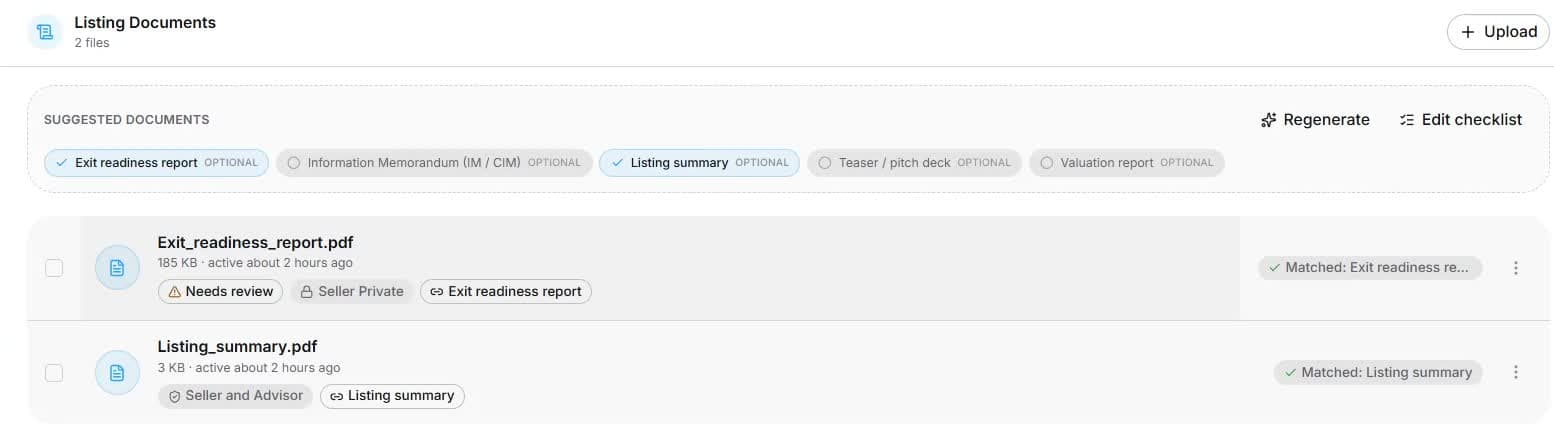
3. Understand organiser access controls
Organiser view: inspect Manage access → Invite buyer / Invite co-broker. Review side, NDA, identity and approval requirements. Reader access does not grant this panel. No invitation or approval is performed.
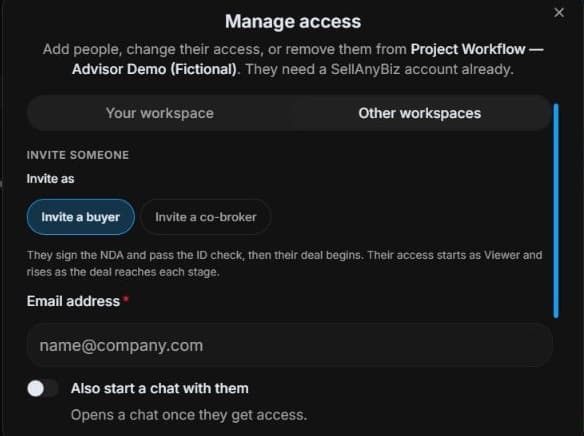
4. Review the outcome and next step
Base your review on files you can actually open. Check periods, signed versions and missing evidence, then ask a precise permitted question. If something is private or unavailable, ask the organiser instead of using another account. The guide does not expand your permissions or conclude that absent evidence proves a business fact.
Common questions
Short answers to what people ask most about this part of the product.
Why can’t I see Manage access?
Buyer document access is not organiser permission. The organiser manages invitations and file visibility.
What if a source record is not visible?
Check access status and ask the organiser a precise question. Private or unshared records may exist; do not conclude that lack of visibility proves absence.
Why are the shown controls in English?
These real platform captures use English labels. Italian narration and instructions retain them so you can identify the exact shown controls.
Video transcript
You want to inspect the seller’s evidence after confidential-access requirements. Begin from Listing detail and Data Room, checking your access status first. Your buyer account displays only permitted files and actions, not the organiser controls shown to explain the system. In Documents, inspect file name, category, review status and visibility. These files belong to a fictional training room. A generated report is a summary to review, not a replacement for original accounts or signed contracts. Organisers can upload authorised evidence and inspect its classification. Readers should open only the files actually permitted for their role and verify current reporting periods before relying on them. The organiser’s Manage access panel separates workspace access from external buyer and co-broker invitations. Check the intended person and side before changes. An invitation is not unrestricted access: NDA, identity and approval requirements can still apply. Viewing a document does not give a reader these organiser controls. Base your review on files you can actually open. Check periods, signed versions and missing evidence, then ask a precise permitted question. If something is private or unavailable, ask the organiser instead of using another account.
Watch the video, or follow the written steps below. Both cover the same walkthrough.
Next guide