Use Case 10
Track your opportunities
Platform walkthrough
Learn from the actual platform screens and written steps, then perform the authorized actions in your own workspace. Actions explained in the video are not necessarily completed in the example.
Browse use cases for BuyerStep-by-step guide
The same walkthrough in writing, with a screenshot for every step.
This walkthrough uses actual platform screens. Actions requiring an authorized user are explained for you to perform in your workspace.
1. Find the correct opportunity
Open Platform → Deal Room → Search your deals in the correct workspace. The safe capture has no client records.
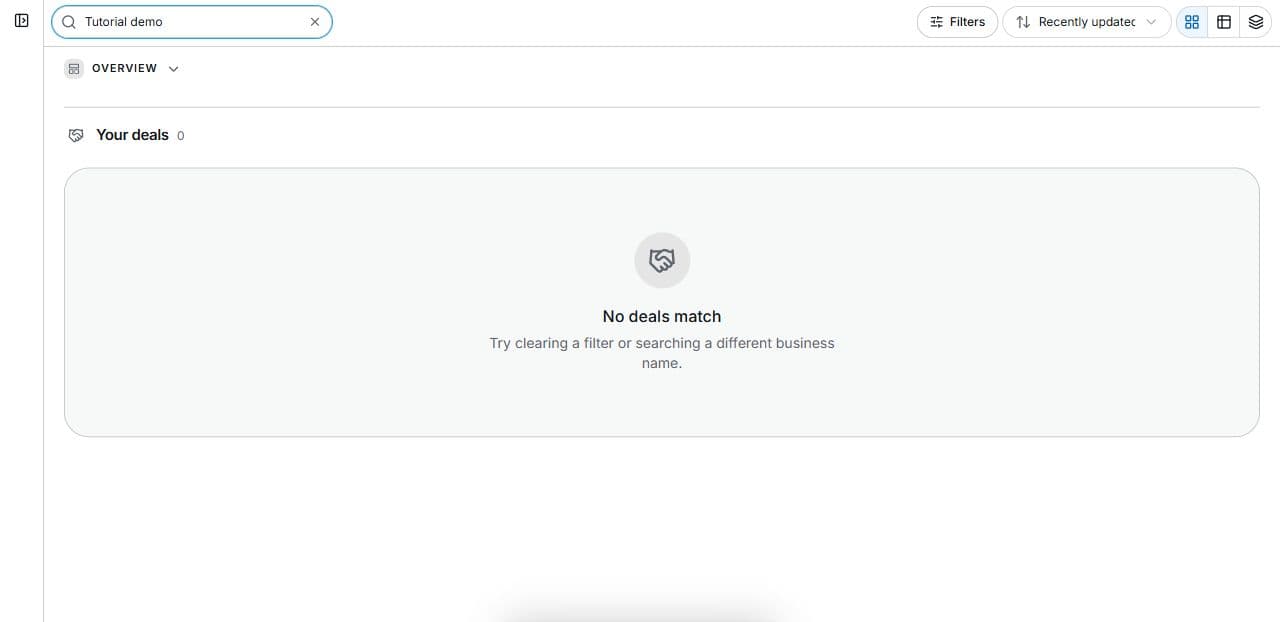
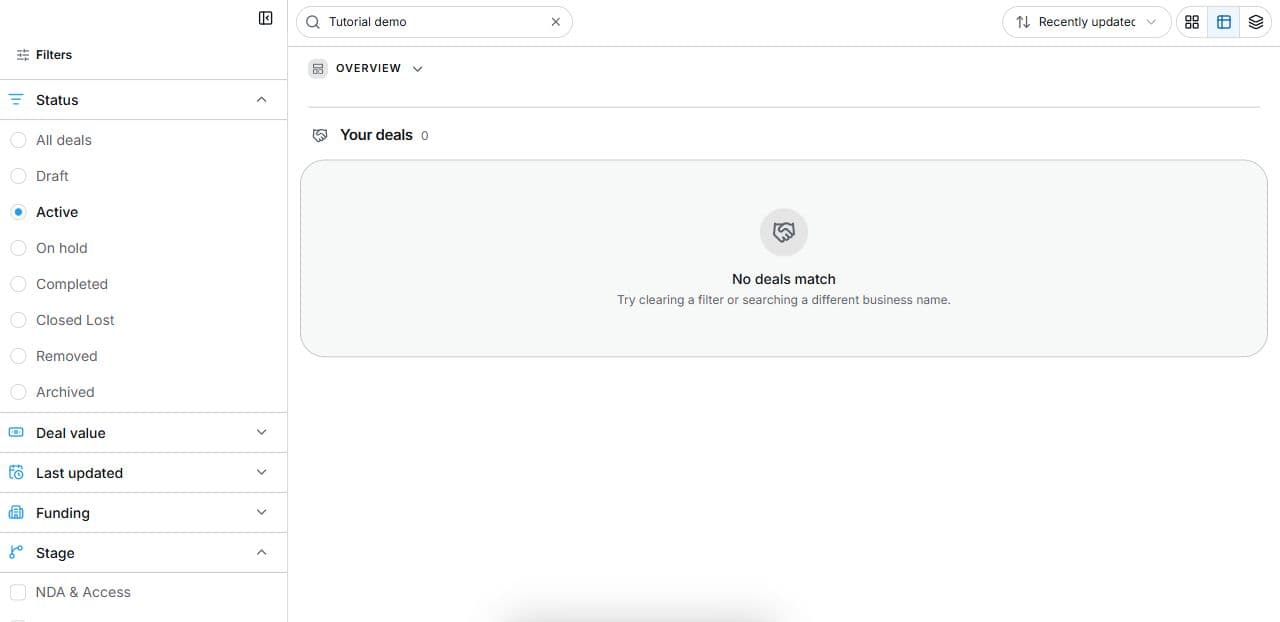
2. Find the relevant status and stage
Open Deal Room → Filters. Combine Status, Stage and Search. The empty capture excludes client records. Filters do not change transactions.
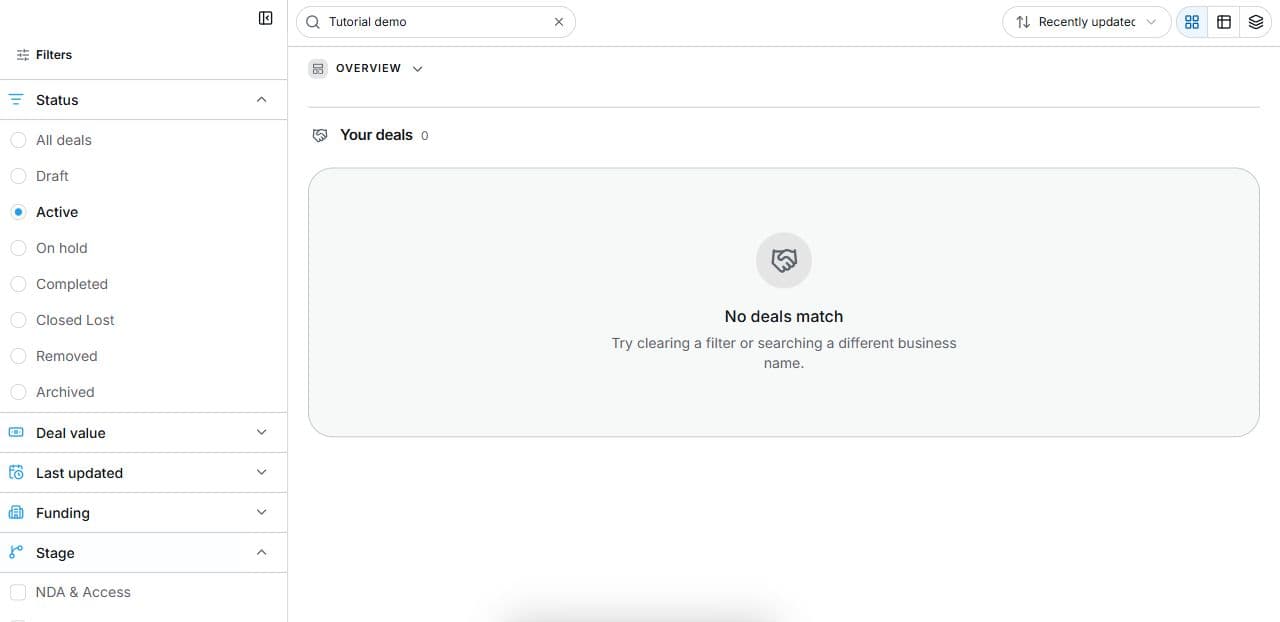
3. Open the permitted deal
Choose Open deal in a permitted result. Review Checklist, the next item, Answer questions, Create a task and Documents. Resolve prerequisite items before locked stages.
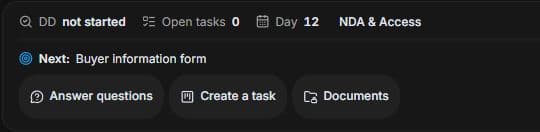
4. Plan the next evidence task
Open Tasks → Add Task. Set a precise action, Status, Assignee, Due, Priority and Owner side. Verify responsibility and permissions before saving a real task.
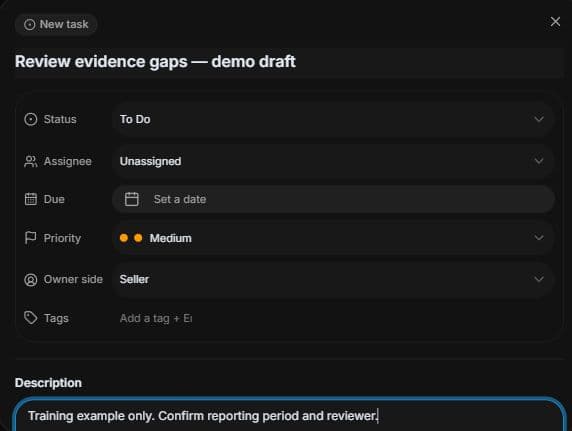
5. Review the outcome and next step
Choose a concrete next action for each candidate: review public facts, seek authorised access or continue diligence. Use a consistent view to revisit actual deals. If a saved business is absent here, check whether a deal exists instead of assuming the shortlist was lost. This example changes no candidate, ownership or transaction status.
Common questions
Short answers to what people ask most about this part of the product.
Why is a saved listing absent from Deal Room?
Saving is research. Deal Room shows accessible deals; check that the deal exists and that you are a participant.
What belongs in my next-action review?
Distinguish public research, pending access and active diligence. Use views and stage/status filters to locate actual deals, then review their specific unfinished requirements.
Why are the shown controls in English?
These real platform captures use English labels. Italian narration and instructions retain them so you can identify the exact shown controls.
Why is the next stage locked?
Read the checklist’s prerequisite message. Complete the earlier required items with the authorised responsible party before expecting later stages to unlock. Task completion alone does not confirm contractual completion.
Video transcript
You shortlisted several businesses and need to separate saved research from active deal work. Saving a listing helps you revisit it; it does not create a negotiated transaction. Open Deal Room for records where you participate. Search for the current candidate and confirm which actual transaction you are entitled to review. Open Filters in Deal Room. Status describes the overall state; Stage identifies a transaction step such as NDA and Access, Pre LOI Review, Offer, Escrow and Funding, Due Diligence or Close. Combine these with Search to find work. A filter changes the displayed list; it does not advance, sign off or approve the deal. In a permitted result, choose Open deal and review the checklist and the next required item. The deal offers Answer questions, Create a task and Documents. Later stages can stay locked until earlier required items are complete. Use the checklist to identify the evidence and responsible side. A progress percentage is not a probability of closing. Open Tasks and Add Task, or use Create a task. Give the action a precise name and description. Review Status, Assignee, Due date, Priority and Owner side. Match the responsible side to the actual evidence requirement; the organiser’s example shows Seller. Check the permissions before saving a real task. This fictional draft was cancelled without creating a task. Choose a concrete next action for each candidate: review public facts, seek authorised access or continue diligence. Use a consistent view to revisit actual deals. If a saved business is absent here, check whether a deal exists instead of assuming the shortlist was lost.
Watch the video, or follow the written steps below. Both cover the same walkthrough.
Next guide