Use Case 11
Sign NDAs digitally
Platform walkthrough
Learn from the actual platform screens and written steps, then perform the authorized actions in your own workspace. Actions explained in the video are not necessarily completed in the example.
Browse use cases for BuyerStep-by-step guide
The same walkthrough in writing, with a screenshot for every step.
This walkthrough uses actual platform screens. Actions requiring an authorized user are explained for you to perform in your workspace.
1. Inspect buyer access requirements
Open the relevant Listing detail → Data Room entry and read requirements before any signature.

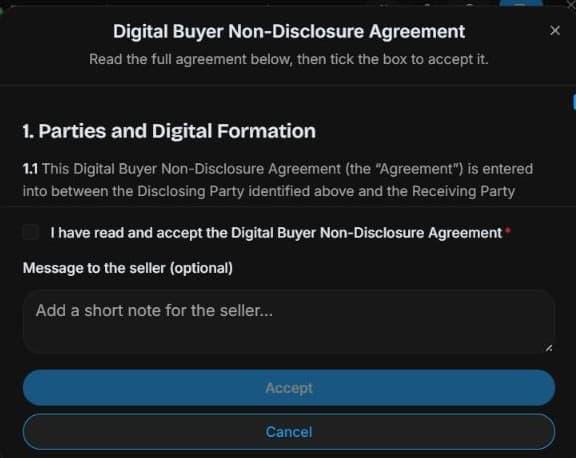
2. Read the actual buyer NDA
Read Digital Buyer Non-Disclosure Agreement. Verify parties, scope and authority before a real signature. This is not the co-broker agreement. Acceptance remains unchecked; no request is sent.
3. Check pending access requirements
Written continuation after an authorised NDA: revisit access status and resolve identity or seller approval requirements. Use the listing contact if appropriate. No approval or message is performed.
4. Review the outcome and next step
For a real signature, use the authorised signatory and follow displayed requirements. If access stays pending, check seller review rather than repeating requests. Keep the accepted agreement with your transaction records. The tutorial signs no NDA, so it cannot demonstrate completed access or replace your own legal and commercial review.
Common questions
Short answers to what people ask most about this part of the product.
Why am I blocked after the NDA?
Identity, seller approval or permissions may remain outstanding. Inspect access status; an NDA alone does not expose every file.
Which agreement is for buyer confidentiality?
Read Digital Buyer Non-Disclosure Agreement on the listing. Confirm legal parties and signing authority; the co-broker NDA is a different agreement.
Why are the shown controls in English?
These real platform captures use English labels. Italian narration and instructions retain them so you can identify the exact shown controls.
Video transcript
You found a suitable business but confidential evidence requires an NDA. Start from that listing’s Data Room access prompt. The important task is understanding the agreement and outstanding checks before a legally meaningful acceptance. We show the actual buyer NDA modal in a read-only demonstration with acceptance unchecked and no request submitted. Read the Digital Buyer Non-Disclosure Agreement for this opportunity before accepting it. Confirm the legal parties, confidentiality scope and your signing authority. This is the buyer agreement, separate from the co-broker NDA. A checkbox or signature can have real legal effects. In the authorised real workflow, an NDA may still leave access pending for identity checks or seller approval. Return to the listing and inspect access status instead of assuming every file is visible. Ask the listing contact which requirement remains if needed. Approval grants the documents permitted to your role, not the seller’s private records. For a real signature, use the authorised signatory and follow displayed requirements. If access stays pending, check seller review rather than repeating requests. Keep the accepted agreement with your transaction records.
Watch the video, or follow the written steps below. Both cover the same walkthrough.
Next guide