Use Case 24
Coordinate buyers, sellers, and advisors
Platform walkthrough
Learn from the actual platform screens and written steps, then perform the authorized actions in your own workspace. Actions explained in the video are not necessarily completed in the example.
Browse use cases for M&A advisorStep-by-step guide
The same walkthrough in writing, with a screenshot for every step.
This walkthrough uses actual platform screens. Actions requiring an authorized user are explained for you to perform in your workspace.
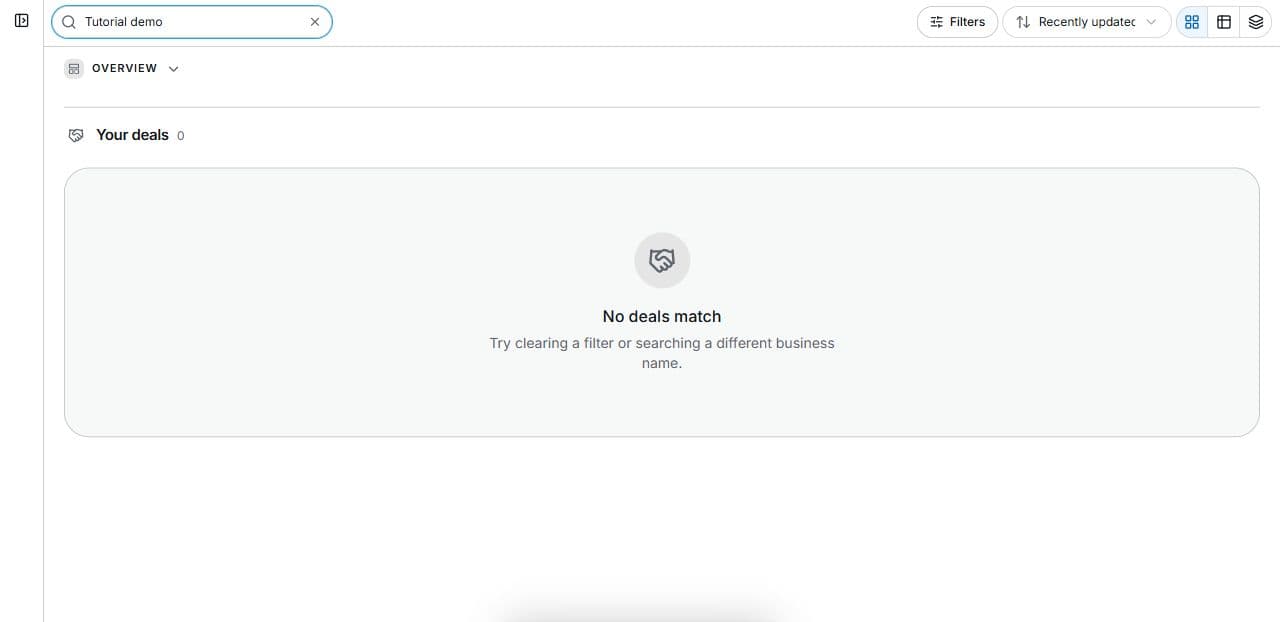
1. Agree the collaboration need
Find the relevant accessible deal. Define task, side and required evidence before changes or invitations. Q&A captures explain an organiser’s fictional room.
2. Keep team discussion on the right side
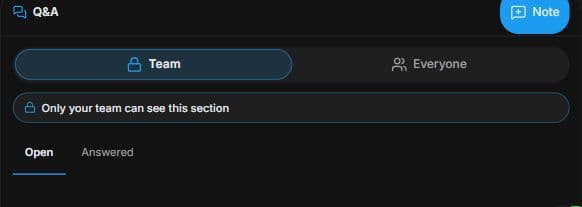
In the permitted room, inspect Q&A → Team → Only your team can see. Check Open / Answered. This captured organiser room explains audience boundaries; no note is posted.
3. Prepare the shared question carefully
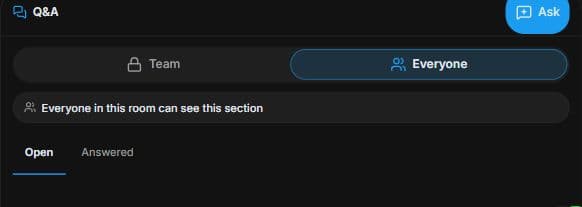
Inspect Q&A → Everyone → Everyone in this room can see. Use Ask to prepare a precise draft; posting requires the final Ask action. Review audience and wording. No question is posted.
4. Review the outcome and next step
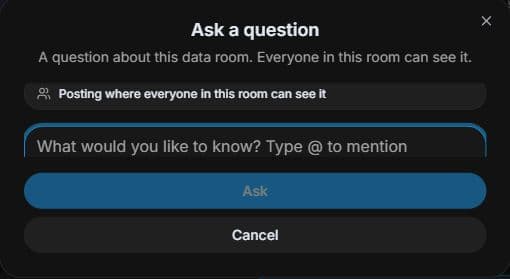
Identify the decision, appropriate respondent and document version participants can see. Keep private commentary in Team and ask shared evidence questions only to the permitted room audience. Review a draft before Ask. The guide posts nothing and changes no membership; coordinate real approvals and next actions in the authorised deal.
Common questions
Short answers to what people ask most about this part of the product.
Does Everyone mean every platform user?
No. It means everyone in that room who has the applicable access. Team is labelled Only your team can see; check audience before posting.
What makes a shared question useful?
Name the decision, evidence version and appropriate respondent. Everyone is room-visible, while Team is internal to the team identified by the room controls.
Why are the shown controls in English?
These real platform captures use English labels. Italian narration and instructions retain them so you can identify the exact shown controls.
Video transcript
A seller, buyer and advisers need to resolve one transaction issue. Find the correct deal and confirm each participant’s side. A common discussion does not mean all parties can see private files. In the room’s Q and A, Team is labelled Only your team can see. Use that audience for internal review rather than assuming every discussion belongs with all participants. Open and Answered help distinguish unresolved questions from responses. Visibility is controlled by room membership and permissions. Check which team and room you are in before adding a note; this demonstration posts nothing. Everyone is labelled Everyone in this room can see; it is room-visible, not public on the website. Use a specific evidence question that those permitted participants can answer. Ask opens a draft and the posting control submits it, so review the audience and wording first. Keep private team commentary out of shared questions. Identify the decision, appropriate respondent and document version participants can see. Keep private commentary in Team and ask shared evidence questions only to the permitted room audience. Review a draft before Ask.
Watch the video, or follow the written steps below. Both cover the same walkthrough.
Next guide