Use Case 21
Draft NDAs, LOIs, and documents
Platform walkthrough
Learn from the actual platform screens and written steps, then perform the authorized actions in your own workspace. Actions explained in the video are not necessarily completed in the example.
Browse use cases for Business brokerStep-by-step guide
The same walkthrough in writing, with a screenshot for every step.
This walkthrough uses actual platform screens. Actions requiring an authorized user are explained for you to perform in your workspace.
1. Match source and purpose
Open Document Builder → Create. Decide listing, deal or standalone source before selecting a template.
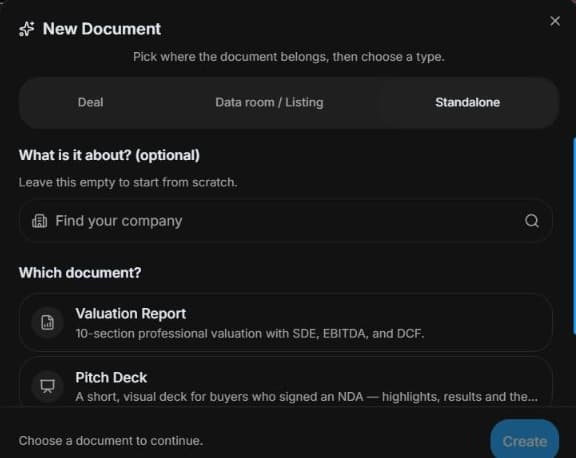
2. Select the source before the template
Open AI Builder → Document Builder → Create. Select listing, deal or standalone source and inspect its available templates. Use authorised evidence and identify unknown assumptions.
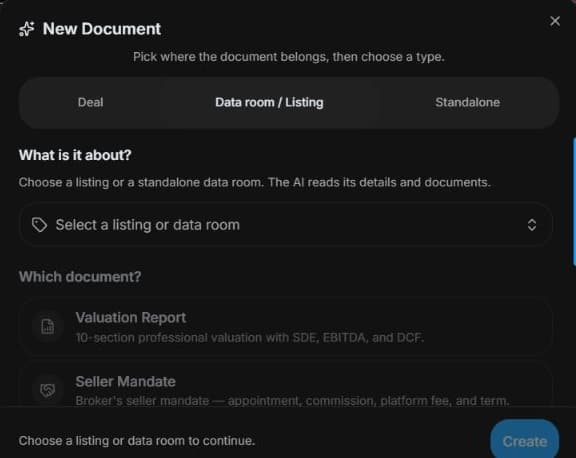
3. Check deal eligibility and review the draft
Choose an eligible Deal before the deal-bound template. Missing choices may reflect role/stage restrictions. Review any generated draft. No document is generated, sent or signed here.
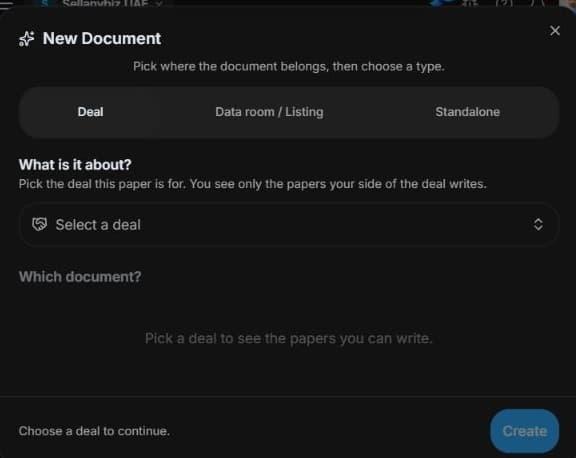
4. Review the outcome and next step
After authorised generation, compare the draft with negotiated instructions and source evidence. Resolve names, dates and amounts before legal or commercial review. AI output is no signed NDA or accepted LOI. An empty selector means check access and stage, not choose another client’s deal. This example sends and signs no document.
Common questions
Short answers to what people ask most about this part of the product.
Why is LOI absent from Standalone?
Deal-bound NDA/LOI templates require eligible deal, role and stage. Standalone choices are narrower and serve different purposes.
What must be checked in an NDA or LOI draft?
Check legal parties, authority, dates, amounts, negotiated clauses and source references. Generation is separate from review, sending, signing and acceptance.
Why are the shown controls in English?
These real platform captures use English labels. Italian narration and instructions retain them so you can identify the exact shown controls.
Video transcript
You need an NDA or LOI draft for an actual transaction. Open Document Builder and decide its source before choosing a template. Parties and transaction context matter, so a deal document must use an eligible deal instead of an unrelated standalone draft. Open Document Builder and Create. Choose a listing, a deal or a standalone source before the template. Listing choices include valuation, mandate, exit readiness, pitch, confidential information memorandum and summary; standalone choices are narrower. Select a document appropriate to the actual question and provide authorised evidence. Do not invent missing figures or assume every template works without an eligible listing or deal. For deal-bound documents, choose an eligible deal first. NDA, LOI and lender templates depend on the deal, role and stage. If the selection is empty, check the workspace and access rather than choosing an unrelated transaction. Review parties, dates, amounts, sources and clauses in a generated draft. Generation does not send, sign or legally approve the document; those actions require separate review and authority. After authorised generation, compare the draft with negotiated instructions and source evidence. Resolve names, dates and amounts before legal or commercial review. AI output is no signed NDA or accepted LOI. An empty selector means check access and stage, not choose another client’s deal.
Watch the video, or follow the written steps below. Both cover the same walkthrough.
Next guide