Use Case 18
Match buyers with AI
Platform walkthrough
Learn from the actual platform screens and written steps, then perform the authorized actions in your own workspace. Actions explained in the video are not necessarily completed in the example.
Browse use cases for Business brokerStep-by-step guide
The same walkthrough in writing, with a screenshot for every step.
This walkthrough uses actual platform screens. Actions requiring an authorized user are explained for you to perform in your workspace.
1. Define the relevant person
Open Browse → People and define role, sector and geography before matching or contact.
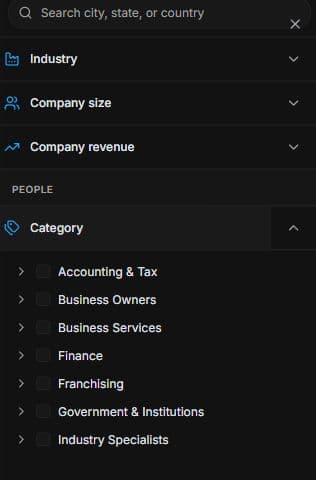
2. Define a relevant people search
Open Browse → People → Filters. Choose category, role, industry and location. Review each profile; category membership alone is not confirmed interest, authority or capacity.
3. Separate new matches from existing interest
Use Ask AI for new matching requests. Interested in your listing narrows existing savers/viewers. Review suggestions and use Save to a search where offered. No contact or campaign is sent.
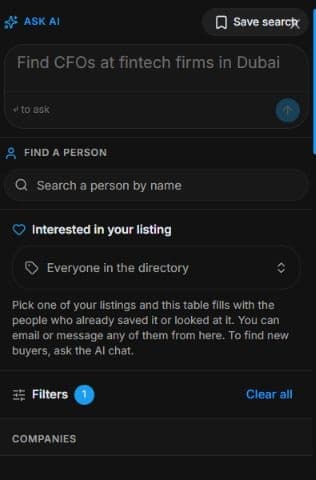
4. Review the outcome and next step
Compare matches with seller objectives before deciding on a separate outreach draft. Find buyers for my listing is an AI Outreach goal; review audience, exclusions, wording and costs before launch. Matching and saving send nothing. This guide creates no buyer contact or campaign delivery and grants no room permission.
Common questions
Short answers to what people ask most about this part of the product.
Which control finds new buyers?
Ask AI and People Agent request new matches. Interested in your listing only narrows existing savers/viewers.
When should matching become outreach?
After qualifying profiles, use a separate reviewed AI Outreach draft if appropriate. Check Find buyers for my listing, audience exclusions, wording, channels and costs before launch.
Why are the shown controls in English?
These real platform captures use English labels. Italian narration and instructions retain them so you can identify the exact shown controls.
Video transcript
You represent a seller and want new acquisition candidates, not only people who already viewed the listing. Open Browse and People. Specify sector, location, deal size and relevant operating experience. Treat suggestions as a shortlist to qualify, rather than proof of budget or buyer demand. The two matching routes have different purposes. In People, open Filters and choose a relevant category before refining the criteria. Translate the requirement into role, industry and location. Check the profile rather than assuming every result has the required budget, experience or authority. A category describes a person’s role; it does not prove their current interest in this particular opportunity or their ability to complete a transaction. Use Ask AI to describe the people you need and why they would fit. Interested in your listing filters people who already saved or viewed the listing; it does not find new buyers. For new matches use the People Agent conversation, then inspect the suggestions. Save relevant results to a search where offered. Matching does not send messages or grant confidential document access. Compare matches with seller objectives before deciding on a separate outreach draft. Find buyers for my listing is an AI Outreach goal; review audience, exclusions, wording and costs before launch.
Watch the video, or follow the written steps below. Both cover the same walkthrough.
Next guide