Use Case 01
Publish listings
Platform walkthrough
Learn from the actual platform screens and written steps, then perform the authorized actions in your own workspace. Actions explained in the video are not necessarily completed in the example.
Browse use cases for Business brokerStep-by-step guide
The same walkthrough in writing, with a screenshot for every step.
This walkthrough uses actual platform screens. Actions requiring an authorized user are explained for you to perform in your workspace.
1. Open the business listing route
Open AI Builder → Listing Builder and choose Brick & Mortar + Digital in the correct workspace. Confirm the business and seller before using the AI route.
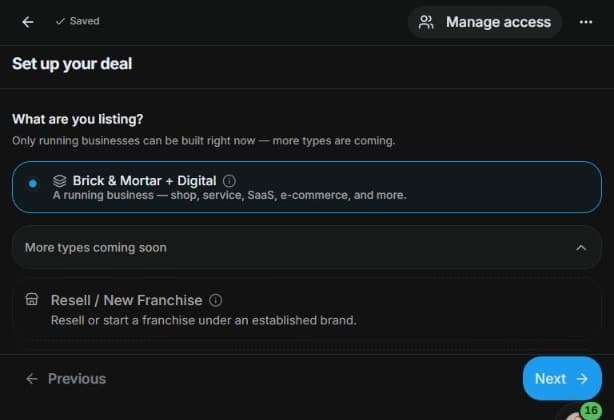
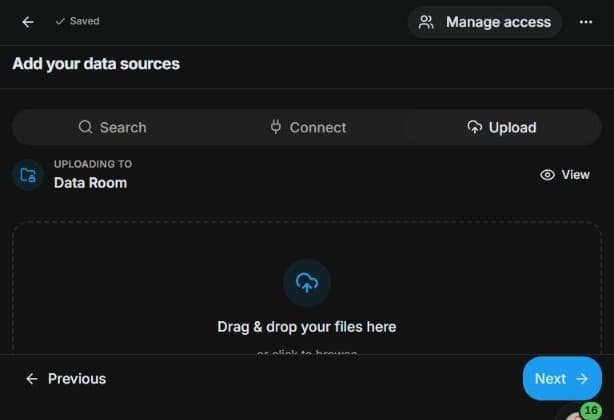
2. Upload source evidence
Use Data Sources to upload the seller-approved brief and records. Choose Generate with AI agent after the upload finishes and the displayed cost is reviewed.
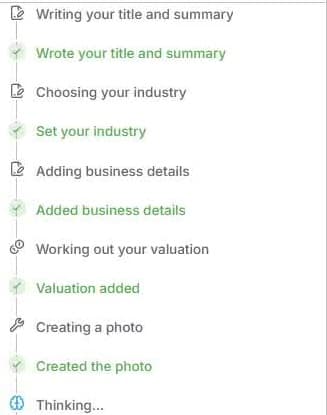
3. Follow the AI agent
Read the agent progress in the chat panel. Wait for completion, then open the generated fields and compare them with the source.
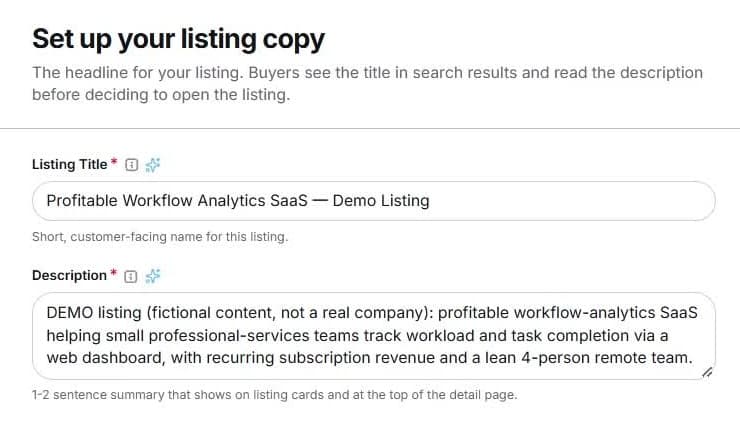
4. Verify and edit the draft
Compare Listing Title and Description with the source. Review financials, currency, category and images. Keep sensitive source records in the controlled data room.
5. Review before publication
Inspect Publish & Review, public facts and the Dataroom preview. Resolve displayed go-live requirements and obtain seller approval before publication.
Common questions
Short answers to what people ask most about this part of the product.
Does the AI agent publish the listing automatically?
No. The agent prepares a draft. Review the generated fields, seller approval and the remaining Publish & Review requirements before making a separate publication decision.
What should I do when the generated figures are wrong?
Compare each reporting period, currency and figure with the source. Correct the draft or leave unsupported values unknown. Review generated descriptions, valuation and images before publication.
Where are the confidential source files kept?
Review the linked data room and each document’s visibility. A public listing preview and approval of a buyer’s access do not make every source file public.
Video transcript
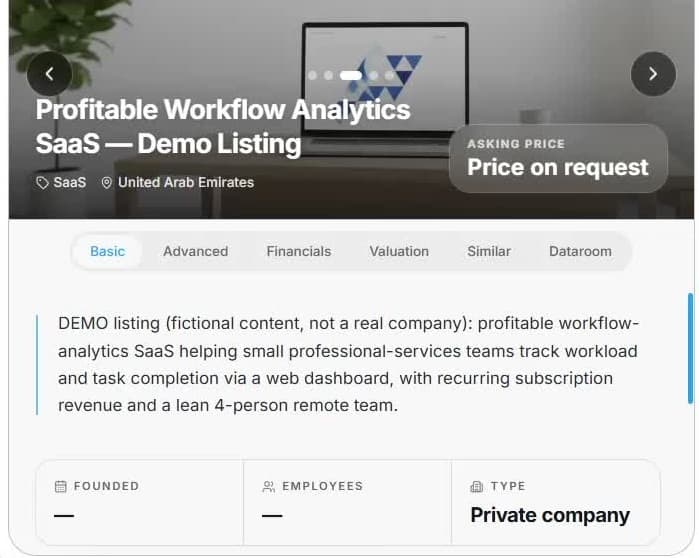
A broker has a fictional seller brief and needs a business-listing draft. Open AI Builder and Listing Builder in the right workspace. Choose Brick and Mortar plus Digital, the available business editor. The separate franchise, commercial-property and capital editors are marked coming soon; use the appropriate preparation guide for those cases. In Data Sources, upload the business brief and the records you are authorised to use. Our example uses a fictional SaaS overview. Include the reporting periods and currency, and leave unknown values unknown. Once the upload is ready, choose Generate with AI agent and check any displayed generation cost. Follow the agent’s progress in the chat panel. This captured run shows the title and summary, industry, business details and valuation draft being prepared. Wait for the run to finish before reviewing the fields. The agent organises the supplied information; its output still needs verification against the source records. Here is the saved fictional result. Review the title and description, then check financial periods, currency, category and images in their sections. Correct unsupported claims and separate the public summary from confidential evidence. A generated valuation is a draft to assess, not confirmation of the business’s market value. Open Publish and Review to see the public listing and the Data Room preview. A new listing prepares its linked room automatically. Check the public facts, document visibility and any remaining go-live requirements, including displayed platform terms. Publish only after the seller’s approval. This saved example remains an unpublished draft.
Watch the video, or follow the written steps below. Both cover the same walkthrough.
Next guide