Use Case 16
Win new seller mandates
Platform walkthrough
Learn from the actual platform screens and written steps, then perform the authorized actions in your own workspace. Actions explained in the video are not necessarily completed in the example.
Browse use cases for Business brokerStep-by-step guide
The same walkthrough in writing, with a screenshot for every step.
This walkthrough uses actual platform screens. Actions requiring an authorized user are explained for you to perform in your workspace.
1. Identify the seller and engagement
Open Listing Builder → Owners & verification for the correct business. Confirm the seller relationship and active workspace. Workspace legal identity is managed separately in Settings → Legal.
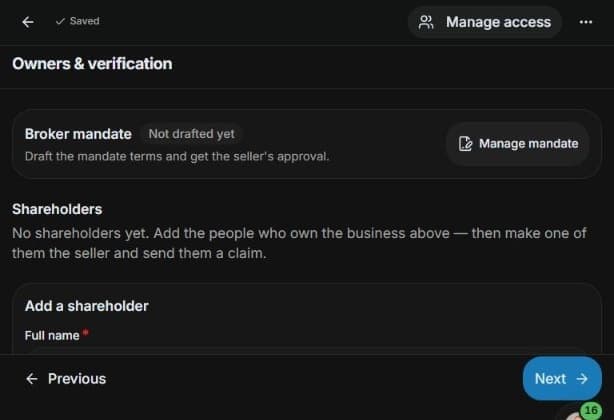
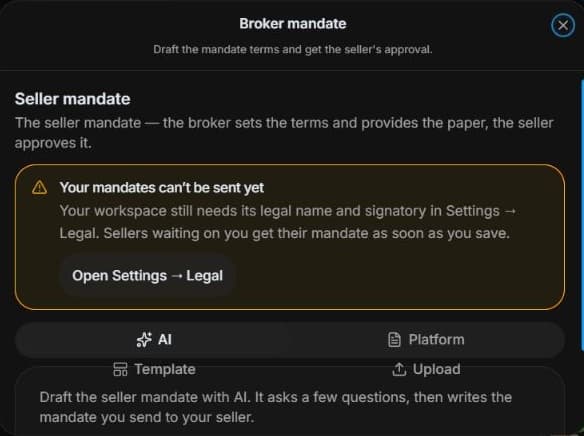
2. Check legal identity and draft options
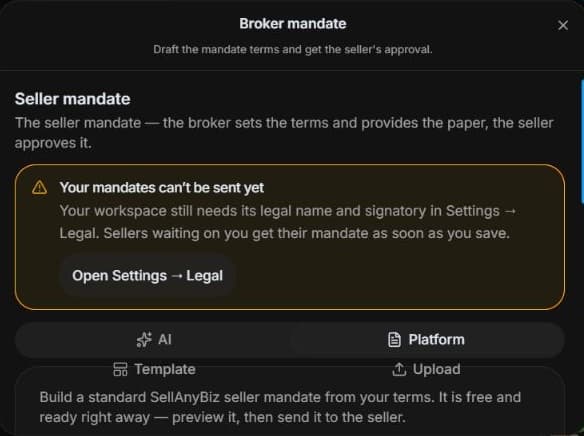
Open Owners → Manage mandate. Choose AI or Platform as separate drafting routes. Missing workspace legal name/signatory belongs in Settings → Legal. Review waiting mandates before saving there: the warning says they may be sent automatically. No settings or mandates are changed here.
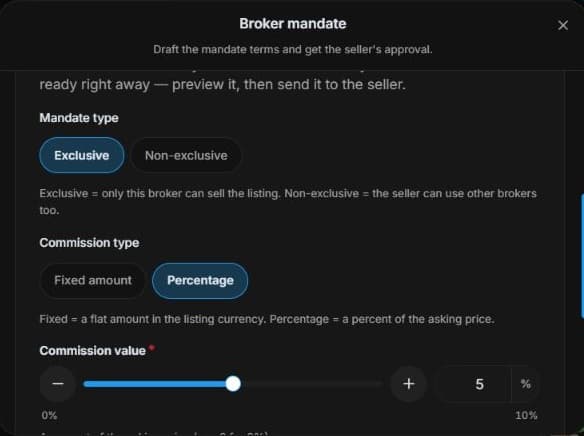
3. Agree the mandate terms
Inspect mandate type, fixed/percentage commission and duration. Review with the seller and resolve identity requirements before Send. No mandate was sent, signed or accepted.
4. Review the outcome and next step
Finish with clear scope and the evidence needed to prepare the listing. Explain who reviews and who can sign. Only the reviewed accepted engagement supports agreed work. This training example sends no mandate and promises no buyer demand, price or timeline; commercial terms require the seller’s and broker’s own approval.
Common questions
Short answers to what people ask most about this part of the product.
Can an AI mandate replace agreeing the engagement?
No. Review scope, legal parties, duration and commission. A draft is not a signed instruction or a guarantee.
Which terms can I discuss on the mandate screen?
Review exclusive/non-exclusive type, fixed/percentage commission and duration in months. Agree actual scope and seller identity before a real send.
Why are the shown controls in English?
These real platform captures use English labels. Italian narration and instructions retain them so you can identify the exact shown controls.
Video transcript
You are meeting a potential seller and want to demonstrate a professional engagement. Start in Owners and explain company and signatory details required before a mandate request. Use the standard draft to agree responsibilities, not to claim the instruction is already won. The available terms let you discuss exclusivity, commission and duration concretely. The listing broker opens Manage mandate from Owners. AI and Platform are separate tabs: AI drafts through the assistant, while Platform offers the standard paper. The warning directs missing workspace legal name and signatory to Settings, Legal. An authorised workspace administrator must review those details and any waiting mandates first: the warning says saving can send waiting mandates automatically. This demonstration changes no settings and creates or sends no mandate. Review exclusive or non-exclusive terms, commission type and value, and duration in months. Confirm which services are included and who can approve the agreement. A populated draft is not an accepted mandate. Sending and signing are separate actions, and approval requires the appropriate identity and verified phone. Finish with clear scope and the evidence needed to prepare the listing. Explain who reviews and who can sign. Only the reviewed accepted engagement supports agreed work.
Watch the video, or follow the written steps below. Both cover the same walkthrough.
Next guide