Use Case 17
Invite sellers to the platform
Platform walkthrough
Learn from the actual platform screens and written steps, then perform the authorized actions in your own workspace. Actions explained in the video are not necessarily completed in the example.
Browse use cases for Business brokerStep-by-step guide
The same walkthrough in writing, with a screenshot for every step.
This walkthrough uses actual platform screens. Actions requiring an authorized user are explained for you to perform in your workspace.
1. Open the correct listing’s Owners
Open Listing Builder → Owners & verification for the correct unpublished business. Confirm the authorised company representative before recording details.
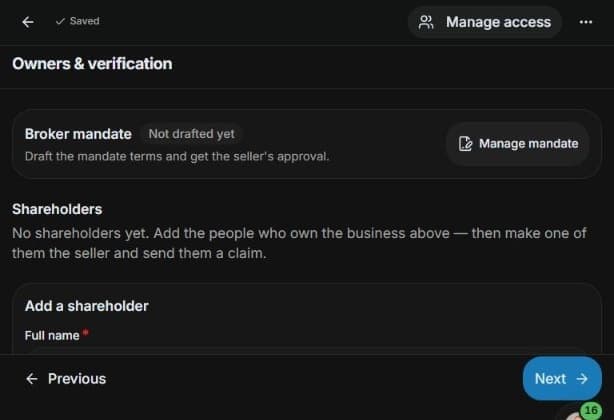
2. Prepare the seller’s record
Complete Add a shareholder with valid contact details. Check the saved row and recipient. Make seller & send claim is the separate invitation action; it was not clicked here.

3. Review the required access level
Inspect Access → Viewer / Editor and choose the appropriate level before a real claim. Review recipient, authority and document-sharing conditions before sending.

4. Follow acceptance and verification
For a real claim, monitor pending acceptance and the seller’s identity check in Owners. Acceptance, access and mandate signing are separate steps. The captured claim remains unsent.
Common questions
Short answers to what people ask most about this part of the product.
Does Add shareholder send the seller invitation?
No. It saves the shareholder details. Review Access and the recipient before the separate Make seller & send claim action.
Why is the seller still awaiting verification?
The real recipient must accept their claim and complete the identity check. A saved row or pending invitation is not verified seller status.
Is the claim the broker mandate?
No. The seller claim establishes the seller relationship and access after acceptance. Mandate terms and approval/signing are separate.
Video transcript
A broker wants the authorised seller to participate in an unpublished listing. Open the correct business in Listing Builder and go to Owners and verification. Adding a shareholder records the person’s details; it does not invite them yet. Confirm the company and the person who is authorised to act for it. Use Add a shareholder to enter the full name, valid email and valid phone number. Role and ownership percentage are optional. This saved training row uses a fictional seller, example email and reserved demonstration phone. Check the recipient carefully. The Make seller and send claim button is a separate action that sends an invitation. The Access menu offers Viewer and Editor. Choose the level the real seller needs and review the recipient before sending the claim. Adding someone as a shareholder is not the same as making them the selling contact. A claim invitation is not a signed broker mandate, and it does not make confidential documents public. After a real authorised claim is sent, follow its pending status in Owners. The recipient must accept the claim and pass the identity check before the seller relationship is verified. Where a claim is pending, use its available follow-up controls carefully. This example stops at the unsubmitted claim: no invitation, access grant or mandate signature occurred.
Watch the video, or follow the written steps below. Both cover the same walkthrough.
Next guide